How to use NovelWarp
NovelWarp is a Windows player for the audiobooks in your own Audible account. You sign in once. NovelWarp downloads the books you bought and keeps them on this computer. You listen from those files.
The window title, the Start menu, and the folders on this PC all say NovelWarp. The first time you open it, books are saved in a folder named Books inside NovelWarp in your Windows user folder. You can choose a different folder in Account before you download.
Do these in order the first time:
- Sign in and choose the folder where the books should be saved.
- Download the books you own. Two download at a time. Each one appears on the shelf when it is ready to play.
- Find a book under All, Series, Authors, or Narrators.
- Press play. Your place is saved. The next time NovelWarp opens, the same book is waiting there. Press play to continue. If that book sat for more than five minutes, you are a few seconds before where you stopped.
Account is the button on the top row. Help and About are at the right end of that same row. Help opens these pages. About has Check for updates. NovelWarp looks at NovelWarp.com. A newer copy installs when a book is not playing and a download is not running. Your books and your sign-in stay where they are. The row under the top buttons is the shelf: All, Series, Authors, Narrators, Listening, Finished, and Not started. The player buttons are the next row down, starting at the left, and they stay put while you scroll the book details. Sleep is at the right end of that same row. The line under the buttons tells you the size of the library. NovelWarp opens filling the screen.
The pictures below are real pieces of that window, at their real size, with a gold border. When a picture is wider than this column, the bar under it moves the rest into view.
Top row

| What you see | What it does |
|---|---|
| NovelWarp | The name beside the logo. |
| Search title, author, series, narrator | Narrows whichever shelf you are on. It looks through the title, the author, the series, and the narrator. |
| Account | Opens Account and library: marketplace, books folder, email, password, Sign in, Sync library, Download owned, and Scan folder. Sign in |
| Help | Opens these pages. |
| About | Opens Application: this copy, Patrick L. Francis, NovelWarp.com, Check for updates, and Theme. Your files |
The X on the window frame saves your place and hides the window. NovelWarp keeps running. In Task Manager it is NovelWarp.exe. Your files
Shelf

| What you see | What it does |
|---|---|
| All | Every book on the shelf, in title order. |
| Series | Series names on the left. In this picture Series is the one selected. |
| Authors | Books grouped under each author. |
| Narrators | Books grouped under each narrator. |
| Listening | Played past about 10 seconds, and not finished. |
| Finished | Played through to the end. |
| Not started | Still at the beginning, including a book you only sampled for a few seconds. |
The full rules for the lists, the gold line under each title, and Save series are on Find a book.
Player

Prev = previous chapter. -10 = back 10 seconds. The triangle = play. +10 = ahead 10 seconds. Next = next chapter.
| What you see | What it does |
|---|---|
| Prev | Previous chapter. The icon is a triangle and a bar, pointing left. |
| -10 | Back 10 seconds. The icon is two triangles pointing left. |
| The triangle | Play. The button shows only the triangle. While the book is playing, the triangle becomes two bars, and those bars pause. |
| +10 | Ahead 10 seconds. The icon is two triangles pointing right. |
| Next | Next chapter. The icon is a bar and a triangle, pointing right. |
| Chapters | Opens the chapter list. The C key does the same. Chapters |
| Speed, minus, 1.0x, plus | Slower or faster. The gold number is the speed. It runs from 0.5x to 4.0x in steps of 0.1. |
| Volume 34%, minus, slider, plus | How loud the book is. 100% is as loud as NovelWarp plays. Minus and plus change it by 5 percent. The slider does the same. |
Space plays and pauses. Left and Right skip 10 seconds. Ctrl+Left and Ctrl+Right change the chapter. Up and Down change the volume by 5 percent. Minus and Plus change the speed. C opens chapters. B saves a bookmark. The keys are ignored while you are typing, and while Account, Chapters, or About is open. The table is on Listen.
Time in Chapter and Time in Title

| What you see | What it does |
|---|---|
| Time in Chapter | The part you are hearing. The white time is where you are. The gold time is what is left. Drag the bar and let go. The jump stays inside this part. |
| Time in Title | The whole book. The white time is where you are. The gold time is what is left. Drag the bar and let go to jump anywhere in the book. |
Sleep
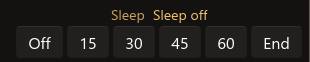
| What you see | What it does |
|---|---|
| Sleep, and the gold words | The gold words name the timer. In this picture they say Sleep off. |
| Off | Leaves the book playing and clears a timer you already set. |
| 15, 30, 45, 60 | Pause after that many minutes of real time. Pausing the book does not pause the timer. |
| End | Keep playing until the current chapter finishes, then pause. |
The full timer rules are on Sleep.
The line under the player

| What you see | What it does |
|---|---|
| Dungeon Crawler Carl | The book that is open. The title is bold. |
| Opening Credits (1 of 50) | The part you are hearing. The name comes first. The numbers count the marks stored in the file. Opening Credits is often mark 1, so the publisher's Chapter 1 is mark 2. Chapters |
| Library: 360 books. 75 series, 51 on their own. 9 listening, 0 finished, about 5,729 hours. | Books on disk, series, titles that stand on their own, books you are listening to, books you finished, and about how many hours that comes to. While NovelWarp is working, this same spot shows the status from Account. |
Series list and book list
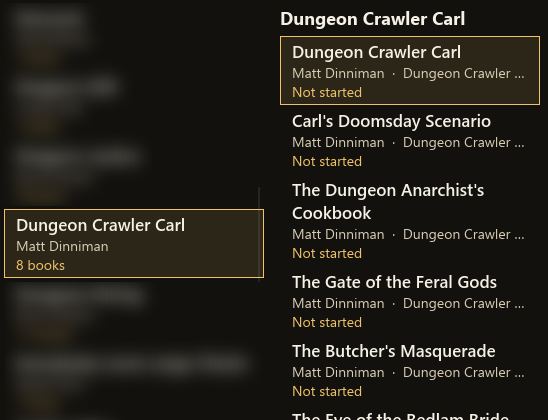
| What you see | What it does |
|---|---|
| The card on the left | The series name, the author, and the count, such as 8 books. Click a series. Its books open in the list beside it. |
| The titles on the right | The books in that series. Click a title to select it. Double-click a title to play from the saved place, or from the beginning if you have not started it. |
| Not started | The gold line under a title. It can also be Not on disk, a percent and a time, or Finished. |
Cover and facts
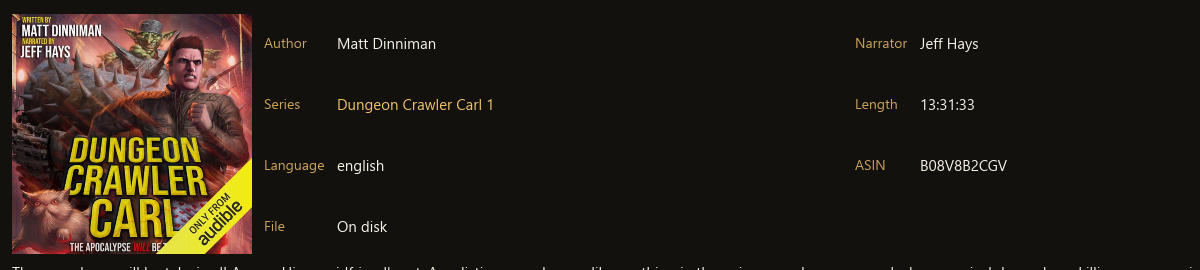
| What you see | What it does |
|---|---|
| Cover | The cover keeps its own shape. |
| Author, Narrator | The people credited on the book. |
| Series | The series name and the volume. Gold means you can click it. NovelWarp switches to Series and selects that series. A dash means the book stands on its own. |
| Length | The running time. |
| Language | The language stored with the book. |
| ASIN | Audible's id for that exact book. A single-book download uses it. |
| File | On disk, Not on disk, Listening, or Finished. |
| The line under the cover | The start of the description that came with the book. The rest of the description continues under this picture when you scroll. |
Under the description

| What you see | What it does |
|---|---|
| Bookmark note | Optional words for this moment. Leave it blank if you only want the time. |
| Bookmark | Saves the current time. A button with the time and your words appears under this row. Click that button to jump back. Delete beside it removes the mark. The B key saves a bookmark when you are not typing. Bookmarks |
| Series name, the volume, Save series | Gives the open book a series and a volume. Use 1 for book 1. Numbered volumes sort in order. Find a book |
| Download this book | Fetches only the open title. Download |
| Remove from list | Takes the row off the shelf. The first click asks you to click again. The audio file stays in the folder. Your files |
NovelWarp is made by Patrick L. Francis. These same pages are the help for NovelWarp.com.